Case study
Case study: a 12-column sales table, shrunk, clipped and fixed
Measured results for a wide table: whole-page shrinking, four silently missing columns, and two fixes.
A regional sales report with 12 columns (region, nine months, a quarterly total and a margin) is a common export. It’s about 1,100 pixels wide, while an A4 portrait page has roughly 718 pixels of printable width. We converted it four ways to see exactly what happens.
Test 1: table in a fixed-width 1,100px container
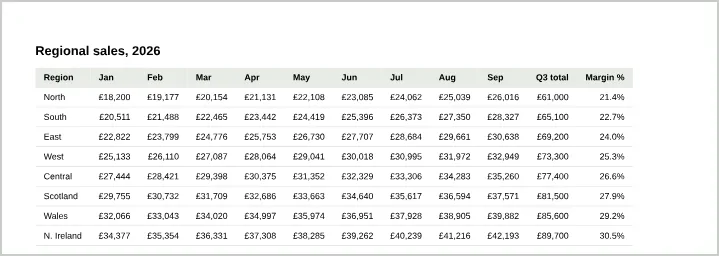
All 12 columns made it into the PDF. Instead of cutting the table off, Chromium scaled the entire page down to fit the widest element, including the heading. The result is complete but small: everything is printed at roughly two-thirds of its intended size.
Test 2: table inside a horizontal scrolling wrapper
Many sites wrap wide tables in overflow-x: auto so they scroll on phones. We kept that wrapper:
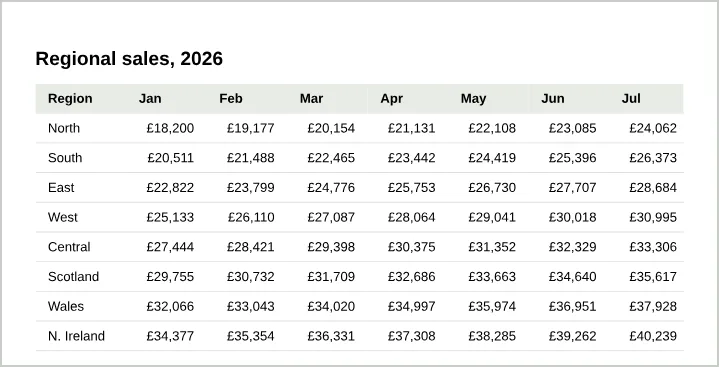
This time the text stayed full-size, but Aug, Sep, Q3 total and Margin % were missing entirely. They weren’t just hidden off the edge: the text extracted from the PDF stops at July. Nothing in the result signals that data was lost, which makes this the more dangerous failure.
Test 3: landscape, same HTML as test 1
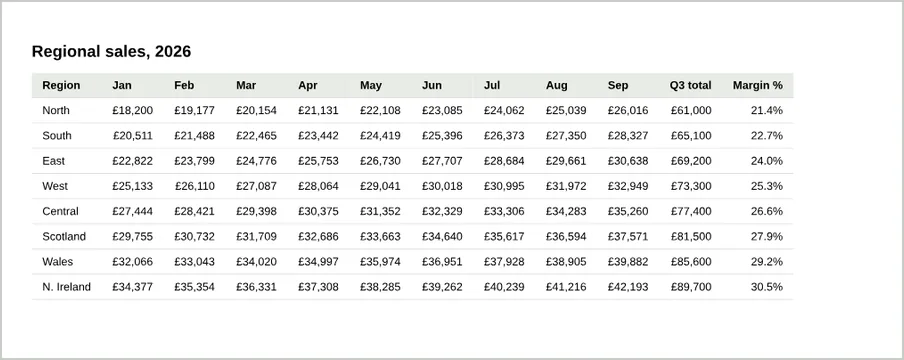
Switching only the orientation to landscape gave a complete, readable table. The landscape page is wide enough that much less scaling is needed.
Test 4: portrait, with print-friendly table CSS
table { width: 100%; table-layout: fixed; border-collapse: collapse; }
th, td { font-size: 8pt; padding: 4px 5px; overflow-wrap: anywhere; }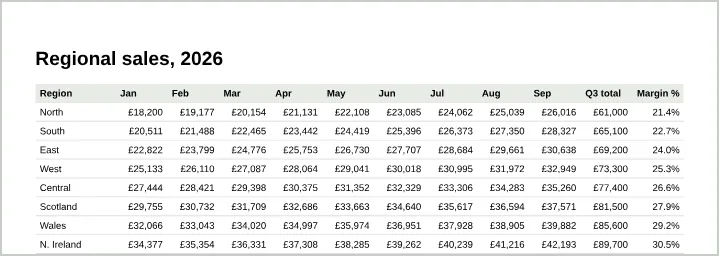
All 12 columns fit on a portrait page, and the size is now a deliberate 8pt rather than whatever the scaling produced.
What we learned
- Remove scrolling wrappers for print.
@media print { .table-wrap { overflow: visible; } }prevents silently lost columns. - Wide fixed widths shrink the whole page, not just the table. If the rest of your document looks unexpectedly small, look for one over-wide element.
- Landscape is the quickest fix for wide data; print CSS gives you the most control.