Is it safe to convert HTML to PDF online? What happens to your document
A step-by-step look at where your HTML goes, what is and isn’t kept, and a checklist for deciding what to upload.
An online converter has to receive your document to convert it, so “is it safe?” really means: who sees it, for how long, and what is kept afterwards. Here’s exactly what happens on htmltopdf.online, and what to ask of any other tool.
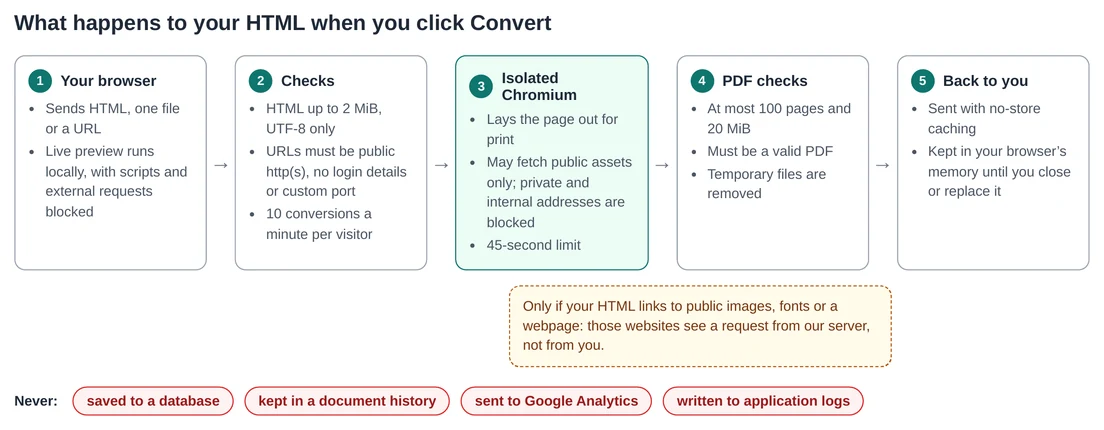
What happens, step by step
- In your browser. The live preview runs on your device with scripts and network requests blocked, so typing HTML doesn’t send anything anywhere.
- On our server. When you convert, the HTML, file or URL is checked: size, UTF-8 encoding, a public URL and the rate limit.
- In the converter. A separate, isolated Chromium lays the page out and prints it. It can only reach public addresses, so a document can’t make it fetch anything from a private network, a class of attack known as server-side request forgery. Each conversion has a 45-second limit.
- Back to you. The PDF is checked and sent back with caching turned off. It stays in your browser’s memory until you replace it or close the page.
What is kept, and what isn’t
| Data | Kept? |
|---|---|
| Your HTML, file or URL | No. Not saved to persistent storage; it exists in memory and temporary files while the conversion runs. |
| The PDF | No. Only your browser holds it. |
| Temporary files | Removed by the engine after each conversion, and discarded whenever the converter restarts. |
| Application logs | Never include document contents or submitted URLs. |
| Your IP address | Briefly in memory for the rate limit. Server and proxy logs may record IP addresses and timing. |
| Analytics | Only if you accept the cookie banner, and never your HTML, files, URLs or PDFs. |
This is a summary of our privacy notice, which is the authoritative version. Removing temporary files isn’t the same as guaranteed secure erasure, which is why the next section matters.
The part people forget: linked assets
If your HTML links to public images, fonts or stylesheets, or you convert a webpage URL, the converter fetches them. Those websites see a request from our server, including the address of each file. Don’t put private tokens in asset links, and avoid signed URLs, which grant access to anyone who has them. Embedding images as data URIs avoids the outside request entirely; see fonts and images.
A checklist for any online converter
- Does it say what it stores? Look for a plain statement about documents, PDFs and logs, not just “we take privacy seriously”.
- Does it need an account? An account usually means a document history.
- Does it fetch URLs for you? If so, does it block private addresses?
- Is analytics optional? Under UK and EU rules, non-essential cookies need your consent.
- Does it collect more than it needs? Good services follow the principle of data minimisation.
When not to use any online tool
Don’t upload documents with passwords, API keys, medical or financial records, or anything your organisation classes as confidential. For those, print to PDF in your own browser, which never leaves your device: see saving HTML as PDF in Chrome, Safari, Edge and Firefox. If you generate documents in your own software, a converter you run yourself, such as the open-source Gotenberg engine this site uses, keeps everything inside your network.