Convert an HTML email or newsletter to PDF
A tested table-based newsletter converted to PDF, and the details that differ from an inbox.
Email teams often need a PDF of a campaign: a proof for sign-off, a record for compliance, or a copy for a client. If you have the email’s HTML, the converter can turn it into a PDF directly. We tested a typical table-based newsletter.
Get the HTML
- Your own template or campaign: most email platforms and template builders can export or show the final HTML. Paste it into HTML Code, or save it as a
.htmlfile and upload it. - A “view in browser” link: many newsletters have one, and you can paste it into the Webpage URL tab. These links are often personal to the recipient, so think before sending one to any online service, including this one.
- An email in your own inbox: use your email app’s Print option and choose Save as PDF instead. It never leaves your device.
What we saw
The test email was 600px wide, built from nested tables with bgcolor attributes, inline styles and a <style> block with a mobile media query. It converted to a single A4 page in its desktop layout.
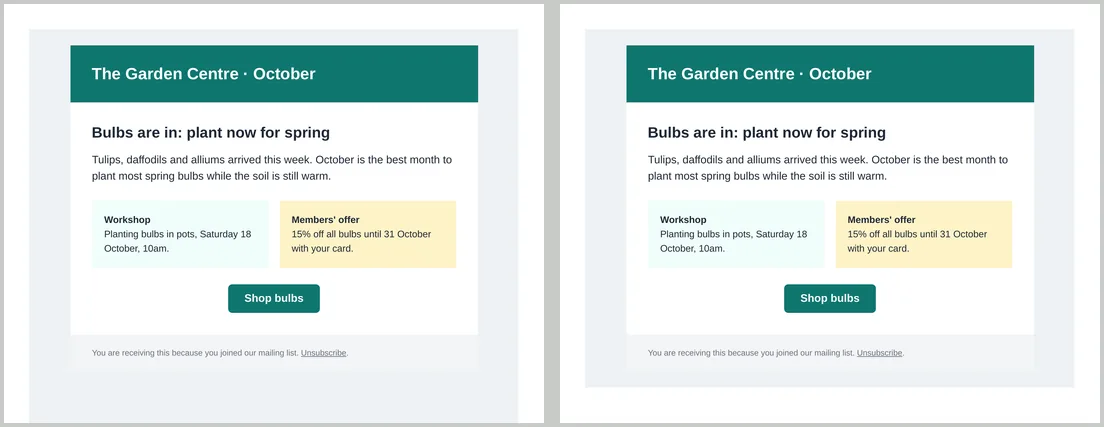
- Desktop layout, not mobile. A4 portrait is about 720px wide for CSS, so a
max-width: 600pxmobile query doesn’t apply. To get the mobile layout, you would need to make that query apply at print widths. - Table colours print.
bgcolorattributes and inline background colours appeared with the Print backgrounds setting on and off. Only the page colour on<body>disappears when it’s off. - Buttons and links stay clickable. The “Shop bulbs” link was a working link in the PDF; see links in PDFs.
- Light theme only. Dark-mode styles inside
prefers-color-scheme: darkaren’t used.
Images
Email images are almost always hosted online, so the converter has to download them. Public image URLs work. If an image returns an error such as 404, the PDF is still made without it; if its server can’t be reached at all, the conversion fails. Tracking pixels follow the same rules, so remove them from proof copies if you can. More in fonts and images in HTML to PDF.
Tidy the PDF
@media print {
  .preheader, .footer-unsubscribe { display: none !important; }
}
Hidden preheader text and unsubscribe footers make sense in an inbox but not in a proof. Hide them with print rules, using whatever classes your template has.