Page numbers, headers and footers in HTML to PDF
The CSS that puts page numbers and running headers on every page, tested against the fixed-header approach.
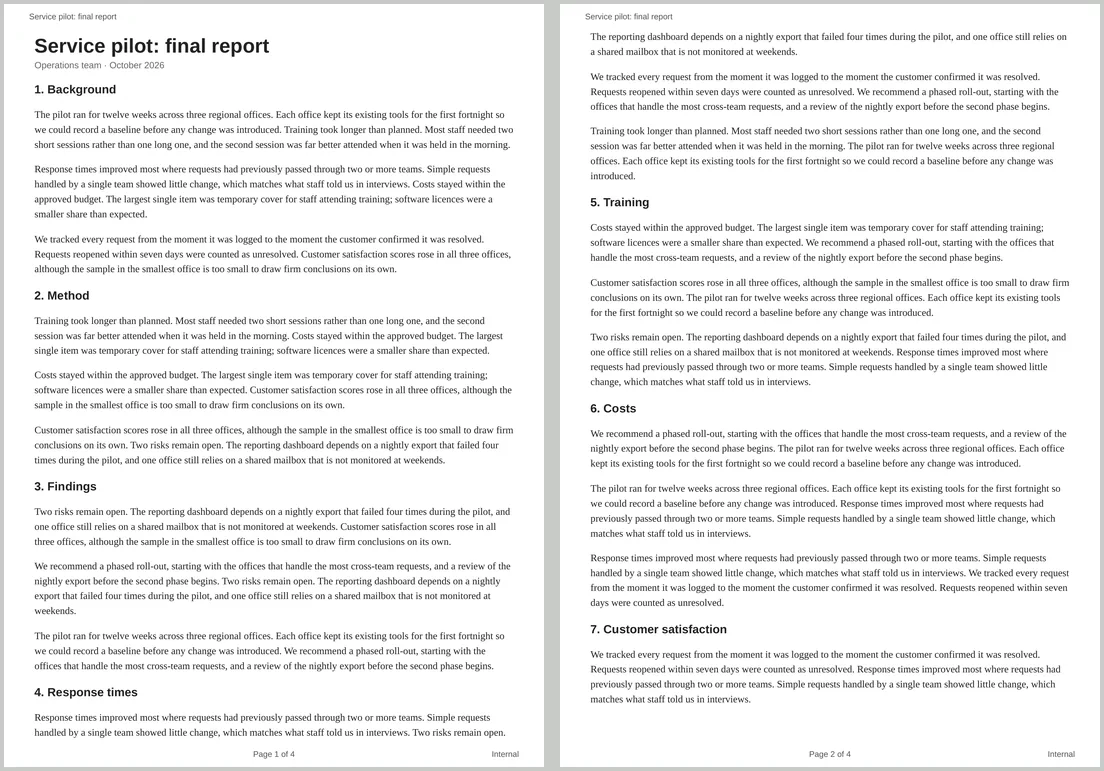
Long PDFs need page numbers, and reports usually repeat their title at the top of each page. In HTML there are two ways to try it: CSS page margin boxes, and elements with position: fixed. We converted the same 4-page report both ways. Only one worked cleanly.
The short answer
@page {
  @top-left      { content: "Service pilot: final report"; font: 9pt Arial, sans-serif; color: #555; }
  @bottom-center { content: "Page " counter(page) " of " counter(pages); font: 9pt Arial, sans-serif; color: #555; }
  @bottom-right  { content: "Internal"; font: 9pt Arial, sans-serif; color: #555; }
}
Paste that into a <style> block and every page gets a title at the top and “Page n of total” at the bottom. counter(page) is the current page and counter(pages) is the total.
Why position: fixed headers go wrong
A common tip is to give a header position: fixed; top: 0. The converter does repeat fixed elements on every page, but they don’t take up space, so the text flows underneath them.
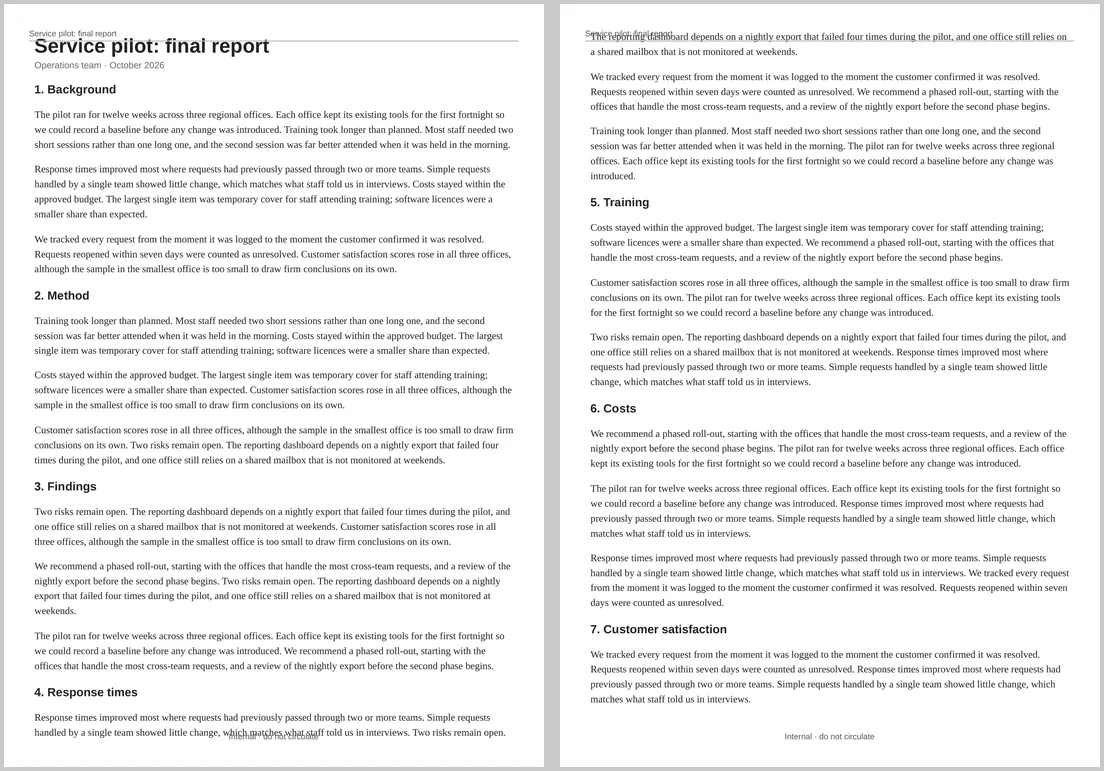
Padding on body only pushes content down on the first page. On later pages the text starts at the top of the page area, right where the fixed header is drawn. Margin boxes avoid this because they live in the page margin, outside the area your content flows through.
The margin boxes you can use
Each page has a ring of 16 margin boxes. The ones you’ll use most are:
@top-left,@top-center,@top-right@bottom-left,@bottom-center,@bottom-right
The others sit in the corners and down the left and right sides. Boxes take their text from the content property: strings, counters and combinations of the two. They don’t hold HTML elements, so a logo belongs in the document itself.
Margins must be big enough
Margin boxes are drawn inside the page margin set in the converter’s settings. With the default 10 mm, one line of 9pt text fits comfortably. At 0 mm the boxes have nowhere to go and disappear; we checked, and the PDF had no page numbers at all. Use 15–20 mm if you want larger text or more breathing room. You can also set the margin in CSS with @page { margin: 15mm; }: it replaces the converter’s setting, and the boxes came back even with the setting at 0 mm.
Hide the header on the first page
Cover pages usually go without a running header. The :first page selector overrides the general rule for page one only:
@page :first {
  @top-left      { content: none; }
  @bottom-center { content: none; }
}
In our test, page one lost its header and number while pages two to four kept “Page 2 of 4” and so on. Numbering still counts the first page, so the second page is page 2.
Tips
- Set the font in each box. Margin boxes take inherited styles from
html, notbody. In our test, a font set only onbodydidn’t reach them and they fell back to the default serif, so give each box a font, size and colour. - Keep the text short. Boxes on the same edge share the width, so long strings can wrap when their neighbours also have content.
- Repeating table headings are separate. For column names on every page, use
<thead>; see HTML tables to PDF. - Check the preview. The live preview shows one long page, so it can’t show margin boxes. Convert and check the PDF.