Make any webpage print-ready: a 10-line CSS makeover
A real before-and-after: what sidebars, cookie banners and sticky share buttons do to a PDF, and the ten lines that fix it.
Most webpages were never designed to be printed. To see how much a little print CSS changes, we built a typical blog post, with a dark top bar, a gradient hero, a sidebar with an advert, floating share buttons and a cookie banner, and converted it twice.
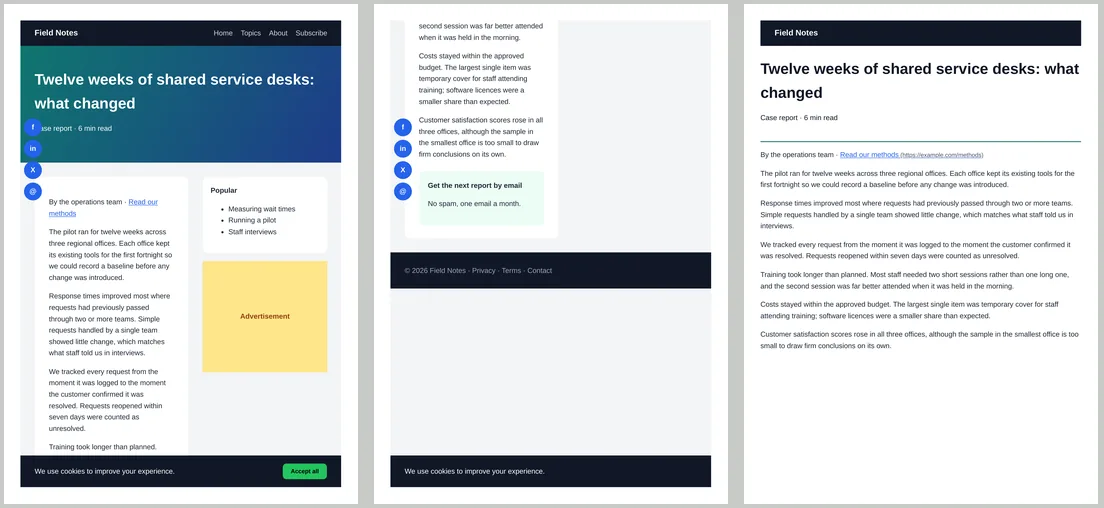
What went wrong before
- Fixed elements repeated on every page. The share buttons and the cookie banner use
position: fixed, so they were drawn on both pages, on top of the text. - The sidebar stole a third of the width. The article text wrapped into a narrow column, so the post ran to two pages.
- Things you can’t click on paper. Navigation, the advert, a newsletter box and the footer used space and ink.
- The link was useless on paper. “Read our methods” gave no hint of where it went.
The ten lines
@media print {
  .topbar nav, .share, .cookie, aside, .newsletter, footer { display: none; }
  .topbar { position: static; }
  body { background: #fff; }
  .layout { display: block; padding: 0; }
  article { padding: 0; }
  .hero { padding: 24px 0; background: none; color: #111827; border-bottom: 2px solid #0f766e; }
  p { orphans: 3; widows: 3; }
  a[href^="http"]::after { content: " (" attr(href) ")"; font-size: 0.85em; color: #4b5563; }
}
Change the class names to match your site. In order, the rules:
- Hide everything that only makes sense on screen.
- Stop the top bar sticking, so it prints once.
- Swap the grey page background for white paper.
- Turn the two-column grid into one column, so text uses the full width.
- Make the hero an ink-friendly heading instead of a full-colour banner.
- Keep at least three lines of a paragraph together at a page break.
- Print the address after each external link.
One thing we kept on purpose: the dark logo bar still printed. With print backgrounds on, element backgrounds always print; add background: none to the top bar too if you want to save ink. More on that in backgrounds in PDF.
Can’t edit the site’s CSS?
- For a page you don’t own, copy its HTML, add the
<style>block at the end of the<head>and convert the edited HTML. - For a single page, a browser’s reader view often removes the clutter before you save it as PDF.
- If the layout is wide, landscape paper may be enough: see saving a webpage without cutting it off.
To see your own print styles while you write them, use print media emulation in Chrome DevTools. For the full set of print rules, read the complete guide to print CSS.