The complete guide to print CSS for PDFs
One map of print CSS: what the page really is, which rules the converter obeys, and links to a tested guide for each step.
Print CSS is the part of CSS that decides what your HTML looks like on paper, and a PDF is paper. Most surprises in HTML to PDF come from a handful of rules. This guide puts them in the order you’d meet them, with what we measured on the converter and a link to a deeper guide for each step.
1. Know the page you’re designing for
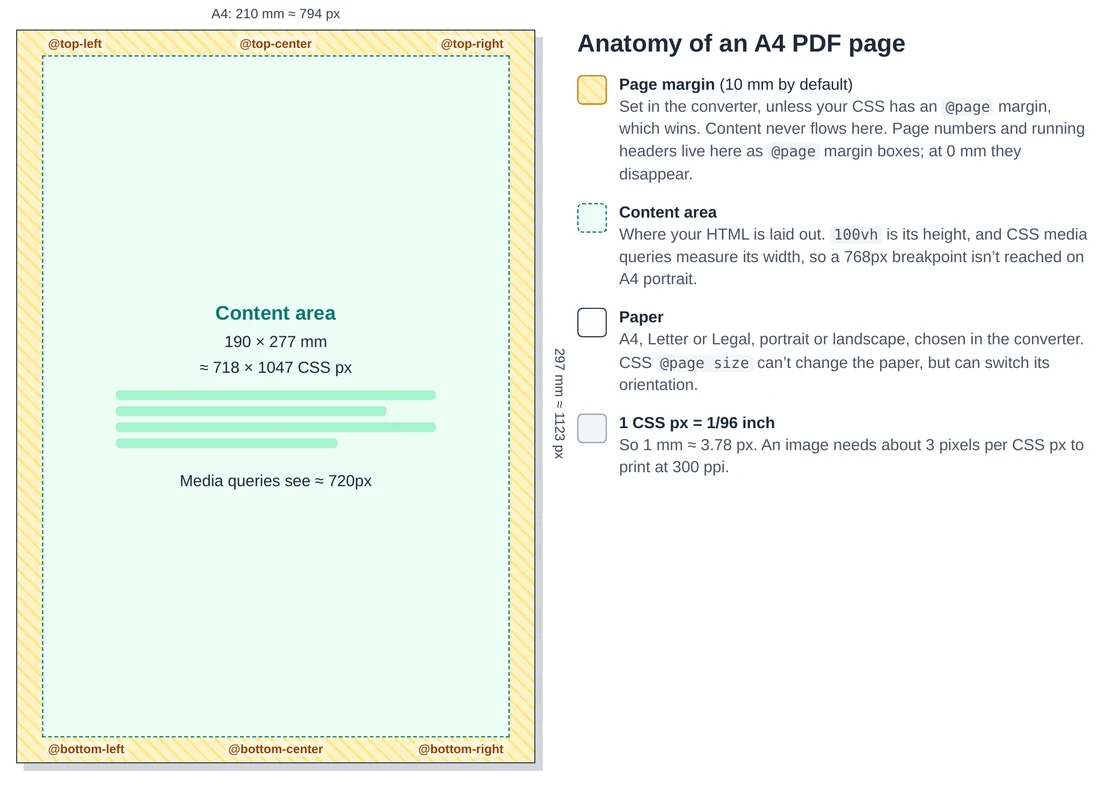
Three numbers explain most layout surprises:
- The content area is about 720 CSS pixels wide on A4 portrait with 10 mm margins. Media queries measure this, not your screen, so a desktop layout becomes its tablet or phone version. See why Bootstrap and Tailwind columns stack.
- 1 CSS pixel is 1/96 inch, so 1 mm is about 3.78 px. Sizes in
mm,cmandptmap exactly to paper. See page sizes in mm, inches and pixels. 100vhis one printable page, the paper height minus the margins. Add the default 8px body margin and you get a blank page at the end.
2. Add a print stylesheet
Everything inside @media print applies only to the PDF, so you can hide navigation and buttons without touching the website:
@media print {
  nav, .cookie-banner, .share-buttons, .no-print { display: none; }
  header, .sticky { position: static; }
  body { margin: 0; font-size: 11pt; line-height: 1.45; }
  a[href^="http"]::after { content: " (" attr(href) ")"; }
}
Our before-and-after makeover shows ten lines like these turning a two-page cluttered blog post into one clean page, and print CSS for PDF covers each rule.
3. Page size, orientation and margins
Paper size and orientation come from the converter’s settings, and so do margins, but CSS can override two of the three. We tested every combination:
| CSS rule | What happened |
|---|---|
@page { size: A5; } or Letter | Ignored. The paper stays the size chosen in the settings. |
@page { size: landscape; } | The page turned landscape, even with the Landscape setting off. |
@page { size: portrait; } or a named size like A5 | The page stayed portrait, even with the Landscape setting on. |
@page { margin: 30mm; } | Replaced the Margins setting on every side. |
The safest habit is to set paper and orientation in the converter and leave size out of your CSS. Use an @page margin only when a design needs exact margins, such as a badge sheet that must start at the paper’s edge.
4. Control where pages break
h2, h3 { break-after: avoid; }
tr, figure, .card, .totals { break-inside: avoid; }
.chapter { break-before: page; }
thead { display: table-header-group; }
These four lines prevent most split rows, orphaned headings and headerless table pages. The details are in CSS page breaks for PDF and HTML tables to PDF, and our invoice case study shows a total split from its line items, and the one-line fix.
5. Headers, footers and page numbers
Use @page margin boxes such as @bottom-center with counter(page). They sit in the page margin, so they never overlap text, unlike position: fixed headers. They need a margin to live in: at 0 mm they disappear. See page numbers, headers and footers.
6. Colours, backgrounds and watermarks
With print backgrounds on, everything prints. With it off, only the page background on html or body is removed; element backgrounds still print unless an element sets print-color-adjust: economy. See background colours and images and adding a watermark.
7. Fonts and images
- Fonts must exist on the converter or load from a public URL. Missing ones fall back silently: fonts and images in HTML to PDF.
- Images print at their own pixel size, so a small logo looks soft: sharp logos and QR codes.
- Lazy-loaded images near the top of the page are often missing: lazy-loaded images.
- Other scripts need the right language attribute: Chinese, Arabic, Hindi and emoji.
8. Layout that fits the paper
Wide tables, long code lines and fixed-width layouts are clipped at the right edge. Replace fixed widths with max-width: 100%, wrap code with white-space: pre-wrap, and choose landscape for wide data. See stop content being cut off, code blocks and columns and hyphenation.
9. Links and accessibility
Links stay clickable, internal #anchors jump within the PDF, and the PDF is tagged, so headings and lists reach screen readers. Set <title> and lang="en". See links and a table of contents and accessible tagged PDFs.
What print CSS can’t do here
target-counter()page numbers in a table of contents are not supported, and the PDF has no bookmarks panel.- Form fields come out as a picture of the form, not fillable fields: HTML forms to PDF.
- Scripts that draw after the page loads may be missed: blank or missing content.
When something still looks wrong, the troubleshooting map lists every common symptom with its fix.