HTML to PDF for business documents: invoices, CVs, certificates and more
Which settings each business document needs, what an invoice must include, and a tested template for every common document.
HTML is a good way to make business documents: you control every detail, you can fill it from your own data, and the same template works for one document or a thousand. These are the documents people convert most, each with a template we’ve tested.
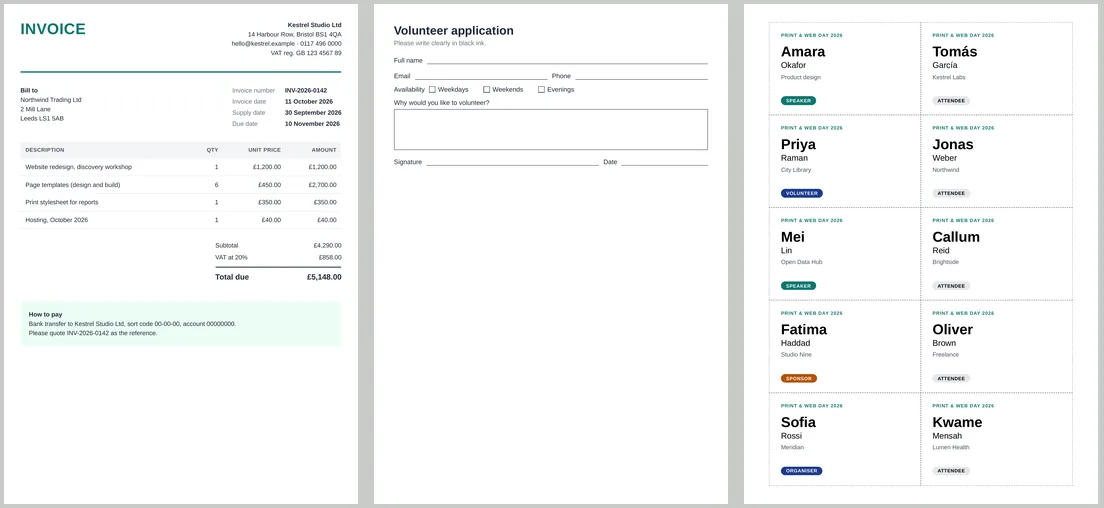
Pick your document
| Document | Paper and margins | Template |
|---|---|---|
| Invoice or quote | A4 or Letter portrait, 10 mm | HTML invoice to PDF |
| CV or résumé | A4 or Letter portrait, 10 mm | HTML CV to PDF |
| Certificate | A4 or Letter landscape, 0 mm with inner padding | Certificate template |
| Printable form | A4 portrait, 10 mm | Printable form |
| Name badges | A4, 0 mm set in CSS | Badge sheet |
| Report with tables and charts | A4 portrait, landscape for wide tables | Tables, charts |
| Email or receipt | A4 portrait, 10 mm | HTML email to PDF |
Invoices: what to include
In the UK, GOV.UK lists what an invoice must include. Our sample invoice above covers each item:
- A unique invoice number.
- Your business name, address and contact details, and the customer’s company name and address.
- A description of what you’re charging for, and the supply date.
- The invoice date, the amounts charged, VAT if it applies, and the total owed.
Limited companies must use their registered name, and VAT-registered businesses need extra details, so check the official guidance for your situation. Other countries have their own rules.
Rules that make every business document look professional
- Keep totals and signatures whole. Put
break-inside: avoidon the totals block, as our invoice case study shows. - Repeat table headers. Long line-item tables need a
<thead>: tables to PDF. - Line up numbers.
font-variant-numeric: tabular-numsand right alignment keep amounts in neat columns. - Use a font the converter has, or load one from a public URL: fonts and images.
- Use a sharp logo, ideally SVG: sharp logos.
- Add page numbers to anything longer than one page: page numbers and footers.
- Mark drafts with a watermark until they’re final: add a watermark.
- Make it accessible: a
<title>and alangattribute go straight into the PDF: accessible PDFs.
From one document to hundreds
Once a template works, you can fill it from a spreadsheet and make one PDF per row: see mail merge to PDF, or call the free API from your own software. Before sending customer data to any online tool, read what happens to your document.