HTML to PDF not working? Every common problem and its fix
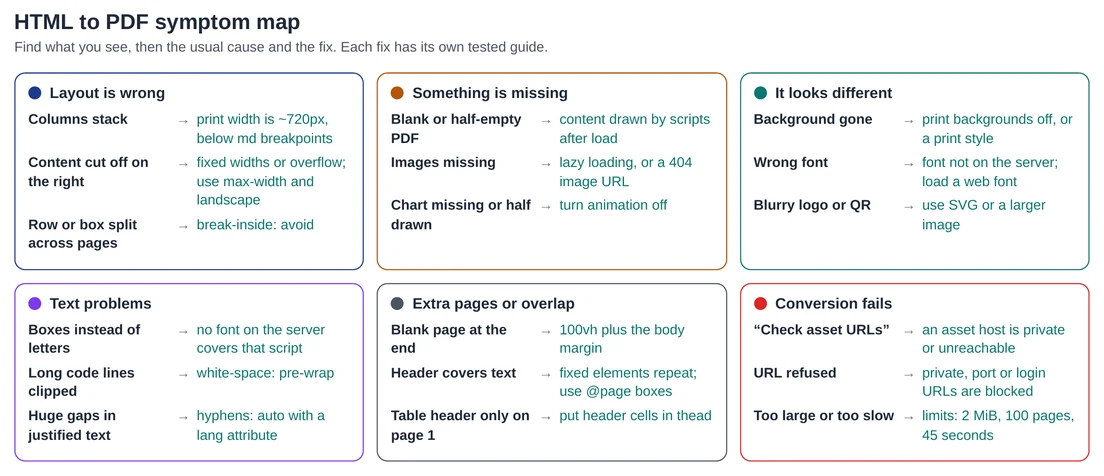
An illustrated symptom map of the eighteen most common HTML to PDF problems, each linked to a tested fix.
Most HTML to PDF problems fall into six groups. Find what you see in the map, then jump to the section below for the cause and a link to the guide where we reproduced it.
Before you start: a one-minute check
- Look at the PDF, not the live preview. The preview shows one long page with scripts blocked; page breaks, margin boxes and script-drawn content only appear in the PDF.
- See print styles in your own browser. In Chrome DevTools, the Rendering panel can emulate print media, so you can debug
@media printrules live. - Shrink the problem. Delete half the document and convert again. Repeat until the problem disappears; the last part removed holds the cause.
Layout is wrong
- Columns stack into one. The page is about 720px wide, below the 768px
mdbreakpoint. Fix stacked columns. - Content is cut off on the right. A fixed width, a wide table or
overflow: hidden. Stop content being cut off, and see our wide table case study. - A row, card or total splits across pages. Add
break-inside: avoid. CSS page breaks.
Something is missing
- The PDF is blank or half empty. Content drawn by scripts after the page loads. Fix blank or missing content.
- Images are missing. Native lazy loading near the top of the page, or an image URL that returns 404, which leaves the alt text and no error. Fix lazy-loaded images.
- A chart is missing or half drawn. It was captured mid-animation. Charts in PDF and the Chart.js case study.
- A video prints as a dark box, or an embed is cut off. Iframes, videos and embeds.
It looks different
- A background has gone. Print backgrounds is off, or your CSS says
economy. Backgrounds in PDF. - The font is wrong. The font isn’t installed on the converter. Fonts and images and the font case study.
- A logo or QR code is blurry. Sharp logos and QR codes.
- An email looks broken. HTML email to PDF.
Text problems
- Boxes instead of letters. No installed font covers that script, or the wrong language is set. Non-Latin scripts and emoji.
- Long code lines are clipped. Code blocks in PDF.
- Justified text has big gaps. Turn on hyphenation, which needs a
langattribute. Columns and hyphenation.
Extra pages or overlap
- A blank page at the end. A full-height element plus the body margin. Fix the blank page.
- A header covers text on page 2.
position: fixedrepeats on every page. Use margin boxes instead. - The table header only appears on page 1. Put header cells in
<thead>. HTML tables to PDF and the 1,000-row report.
The conversion fails
| Message starts with | Cause and fix |
|---|---|
| “This document or one of its resources could not load” | An image, font or stylesheet points at a host that doesn’t exist or a private address such as localhost. Use public URLs or embed the file. |
| “Use a reachable public HTTP or HTTPS URL…” | The webpage URL is private, has a login in it or uses a custom port. Only public pages on the standard ports can be converted. |
| “HTML must be 2 MiB or smaller” | Usually large embedded images. Link them from a public URL or resize them; see the photo size case study. |
| “This document exceeds 100 pages” or “The PDF exceeds 20 MiB” | Split the document, or reduce image sizes. |
| “Conversion took too long” | The 45-second limit. Remove heavy scripts or slow external assets. |
| “Use a UTF-8 encoded HTML document” | Re-save the file as UTF-8 in your editor. |
| “You have reached 10 conversions in a minute” | Wait a minute. For batches, space requests out as in mail merge to PDF. |
For the rules behind all of this in one place, read the complete guide to print CSS for PDFs.